Category: Office

  • ReText icons with Xfce 4

    ReText is a simple Markdown editor in Ubuntu. You can simply install it by issuing this:

    [sourcecode language=”bash”]
    apt-get install retext
    [/sourcecode]

    It will install ReText 4.1.2 for you. My remote workstation is a virtual machine and using Xfce instead of Unity. And I also want to use ReText 5.3.0 from PyPI.

    In both versions of ReText, if you using Xfce then you will not able to see some icons. Its default icon theme is “gnome”. Here is the commands to install and fix the icon theme issue:

    [sourcecode language=”bash”]

    install packages

    sudo apt-get install python3 python3-pip python3-pyqt5 python3-pyqt5.qtwebkit python3-markups python3-markdown python3-docutils python3-enchant

    install ReText via pip3

    sudo pip3 install ReText

    To fix the icon theme problem with Xfce

    echo "[General]" > "$HOME/.config/ReText project/ReText.conf"
    echo "iconTheme=xfconf-query -c xsettings -p /Net/IconThemeName" >> "$HOME/.config/ReText project/ReText.conf"
    [/sourcecode]
  • Got a 13-inch MBPr

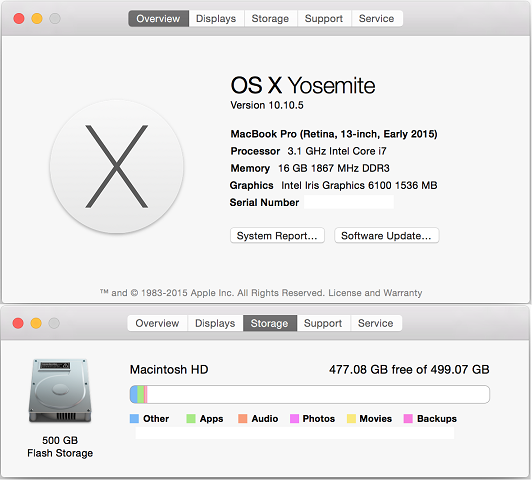
    Last week, I got a brand new MBPr as my primary workstation provided by company. Here is its spec.:

    13-inch MBPrSpec
    13-inch MBPrSpec
  • Tray icons missing after upgrade from 12.04 to 14.04

    Our Ubuntu workstation is required some applications installed for complying security policy. Those applications will show some icons on Systray. After upgrade from 12.04 to 14.04, those icons are missing.

    The reason is “Unity Notification Area (Systray) Whitelist Is Obsolete [Ubuntu 13.04 Raring Ringtail Changes]“. After a little bit searching, here is the solution:

    [code language=”bash” light=”true”]sudo apt-get install indicator-systemtray-unity[/code]

    Then log out and log in again.

    Reference: How to re-enable the systray (indicator panel) after latest updates

  • Update to new version of Skype

    4.2.0.13 on can not connect anymore, need to update to 4.3.0.37

  • Use nc(netcat) to check the DataPower service ports

    To check the SSH service (default port 22):
    [code language=”bash” light=”true”]nc -z $IP 22[/code]
    To check the XML Management Interface (default port 5550):
    [code language=”bash” light=”true”]nc -z $IP 5550[/code]
    To check the SNMP (UDP port 161):
    [code language=”bash” light=”true”]nc -zu $IP 161[/code]

    If connection is successful, it will report a message like:
    [code language=”bash” light=”true”]Connection to $IP 22 port [tcp/ssh] succeeded![/code]
    and exit with 0.

    Reference: nc(1) – Linux man page